
Change your race or target during the plan
A new race, a new date, a faster target or another course: change the goal, and only what comes next changes. Your training so far stays as it is.
On the Plan tab, tap Upcoming race, then Manage plan and Change goal.
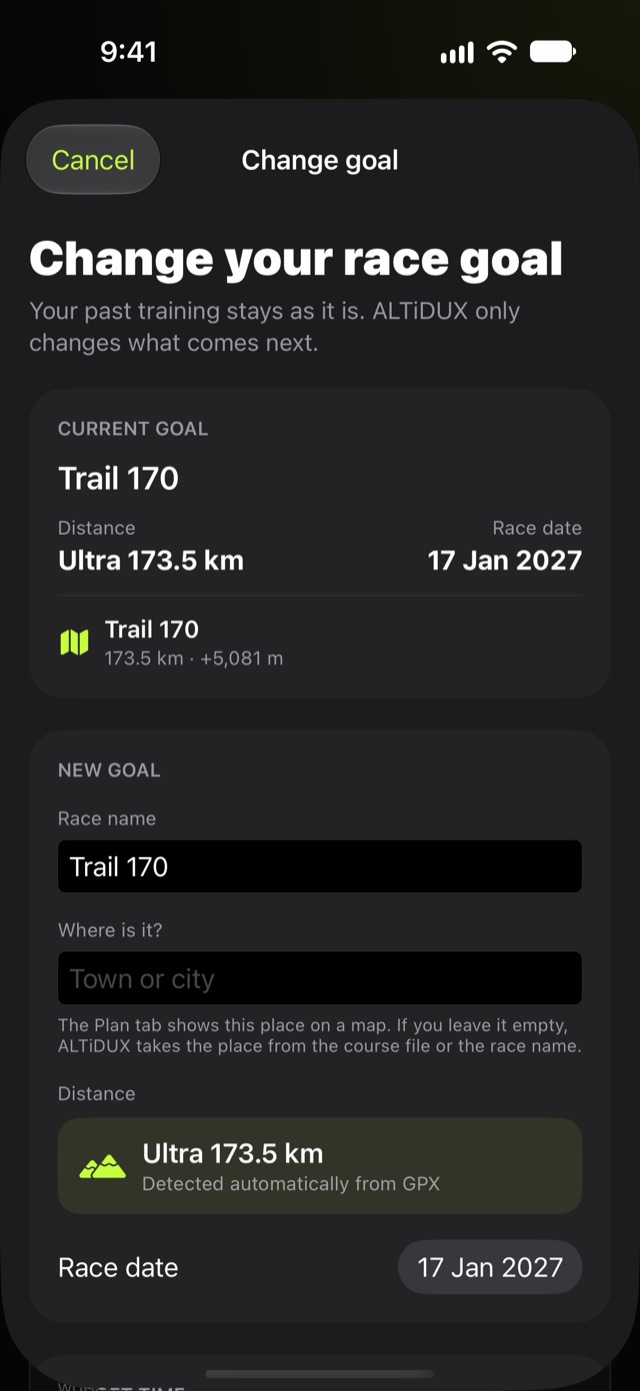
Under New goal, change the race's name, location, distance or Race date.
Under Target time, tap Use recommended target, or Set my own target.
Under Course DNA, keep the current course, choose a new one from its GPX file, or use none.
Read ALTiDUX analysis: it says what will change. Tap Review change. If you change only the target time, the name or the place, or your race is 10 days away or less and you keep its date, the button says Save and saves the change at once.
If you change the distance when the plan has been running for 2 weeks or more, the app may first ask how to go on: Continue from my current level or Start more gently. Then check the figures (the next 7 days, the longest run to come) and tap Change plan.
Good to know
- Changing only the target time leaves your weeks as they are: training paces follow your fitness, not the target.
- If your race is 10 days away or less and you keep its date, your training stays as it is. Only race day itself changes.
- Too few runs in the app to show your current level? The app asks for your weekly distance and your longest run.
- Workouts you added yourself stay.
Related guides
Another question? See Help or write to hello@altidux.com.